Faculty VPN
The everyday way to reach your office computer. Works from Israel only, with no limit on how many machines you connect to.
Setup — register for two-factor auth
You do this once only, from any operating system. Without it no connection will work.
Install the app
Install Microsoft Authenticator on your phone from the app store.
Register
Go to mfar.esc.biu.ac.il and enter your Bar-Ilan username (without
@biu.ac.il).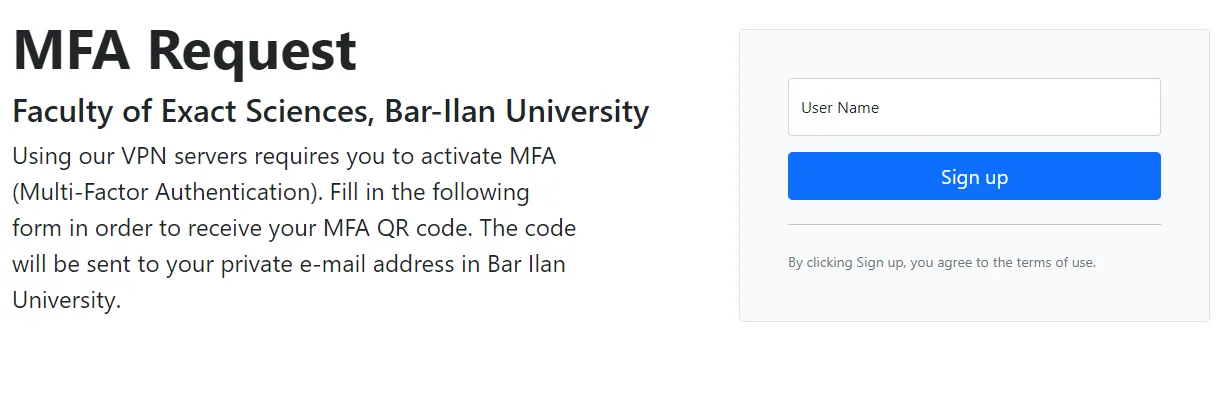
Scan the QR code
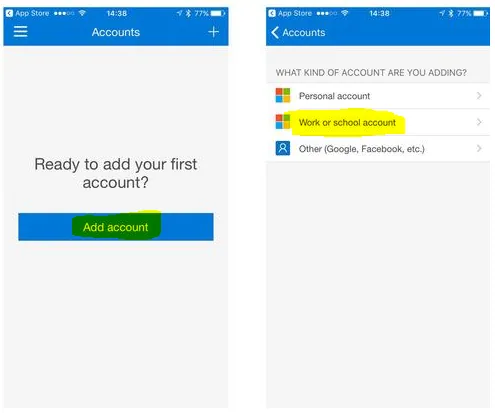
In the app: Add account → Work or school account → Scan a QR code, and scan the code you received by email.
Find your office computer IP
From the office computer open whatsmyip.com and write the address down. You need it for every connection.
The office computer must stay powered on — A remote connection cannot wake a machine that is off.
From Windows — remote desktop
Bitvise SSH Client opens the tunnel and the remote desktop together, in one click.
Install Bitvise
At home, download and install Bitvise SSH Client (formerly Tunnelier).
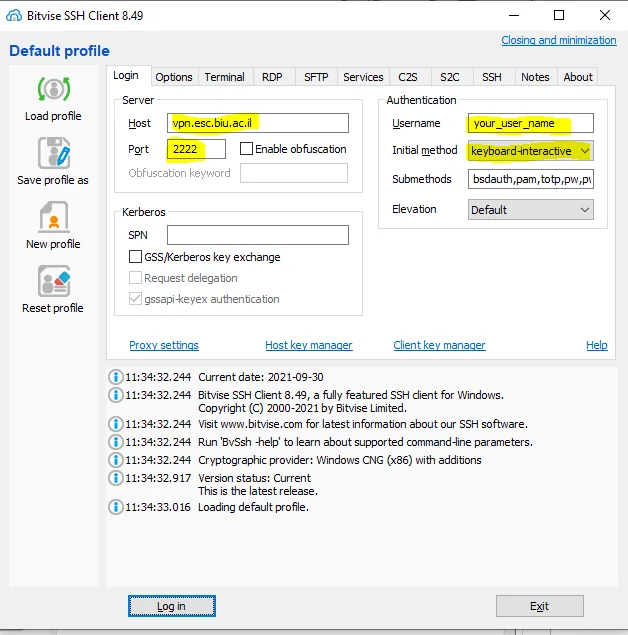
The Login tab
- Host —
vpn.esc.biu.ac.il - Port —
2222 - Initial method —
keyboard-interactive - Username — your Bar-Ilan username
- Host —
The Options and RDP tabs
On Options: tick Open Remote Desktop, and untick Open Terminal and Open SFTP.
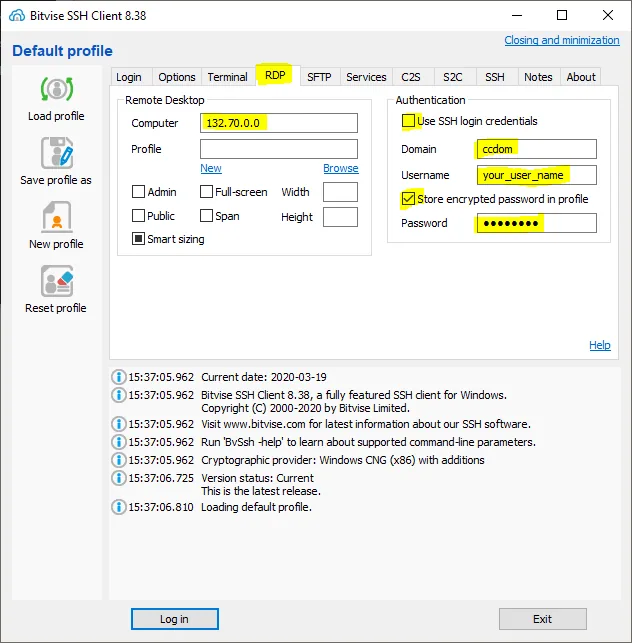
On RDP:
- Computer — your office computer IP
- Domain —
ccdom - Username / Password — your Bar-Ilan credentials
Connect
- Click Login, then Accept and Save.
- Type your Bar-Ilan password.
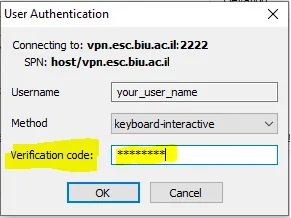
- Open Authenticator, pick
mfa@esc.biu.ac.iland type the one-time code. - Click Connect — your office desktop opens.
From a Mac — remote desktop
On a Mac you open the tunnel from Terminal, then connect through it with the Microsoft remote desktop app.
Open the tunnel
Open Terminal and run — with your office computer IP and your username:
ssh -f -N -L 13389:OFFICE_IP:3389 -l YOURUSER@biu.ac.il vpn.esc.biu.ac.il -p 2222For example:
ssh -f -N -L 13389:132.71.71.2:3389 -l orenn@biu.ac.il vpn.esc.biu.ac.il -p 2222Authenticate
- Type your Bar-Ilan password and press Enter.
- Open Authenticator, pick
mfa@esc.biu.ac.iland type the one-time code.
No error means the tunnel is up and running in the background.
Connect the desktop
Install Windows App (formerly Microsoft Remote Desktop) from the App Store, click + Add PC and enter:
127.0.0.1:13389Sign in with your Bar-Ilan username and password.
Close the tunnel when done
pkill -f "13389:"
From Linux — remote desktop
The same SSH tunnel as on a Mac, with a local RDP client.
Open the tunnel
ssh -f -N -L 13389:OFFICE_IP:3389 -l YOURUSER@biu.ac.il vpn.esc.biu.ac.il -p 2222Type your Bar-Ilan password, then the one-time code from the app.
Connect with an RDP client
xfreerdp /v:127.0.0.1:13389 /u:YOURUSER /d:ccdom /dynamic-resolutionIf
xfreerdpis not installed:sudo apt install freerdp2-x11 # Debian / Ubuntu sudo dnf install freerdp # Fedora / RHELClose the tunnel when done
pkill -f "13389:"
SSH to a Linux machine
Command line only, no desktop. Works from any operating system — on Windows use PowerShell or Windows Terminal.
Connect through the jump host
ssh -J YOURUSER@vpn.esc.biu.ac.il:2222 LINUXUSER@TARGET_HOSTYOURUSER— your Bar-Ilan usernameLINUXUSER— your account on the target machineTARGET_HOST— hostname or IP of the lab machine
Authenticate
- Bar-Ilan password → Enter
- One-time code from Authenticator → Enter
- Your password on the Linux machine
Make it a shortcut
To avoid typing all that every time, add to
~/.ssh/config:Host biu-jump HostName vpn.esc.biu.ac.il Port 2222 User YOURUSER Host lab HostName TARGET_HOST User LINUXUSER ProxyJump biu-jumpFrom then on:
ssh lab
Updated September 2026